
What's involved in the computer repair process
Reboot I.T. uses the latest software, hardware, and tools to diagnose your problem thoroughly and efficiently to get a full picture of the original problem and address any underlining issues that may have caused the problem in the first place. Reboot I.T. goes above and beyond with every customer to not only fix the issues, but educate the customer on best practices, future lifecycles, upcoming changes, possible upgrades, security and backup to make sure every aspect of your I.T. life is covered and well understood for a more comfortable and reassured user experience. Below is a detailed timeline of what this processes looks like as well as the typical time ranges for these kinds of repairs. As long as no parts are needed to be shipped in, the vast majority of all repairs are completed within the first 48 hours for a quick and painless turnaround time.
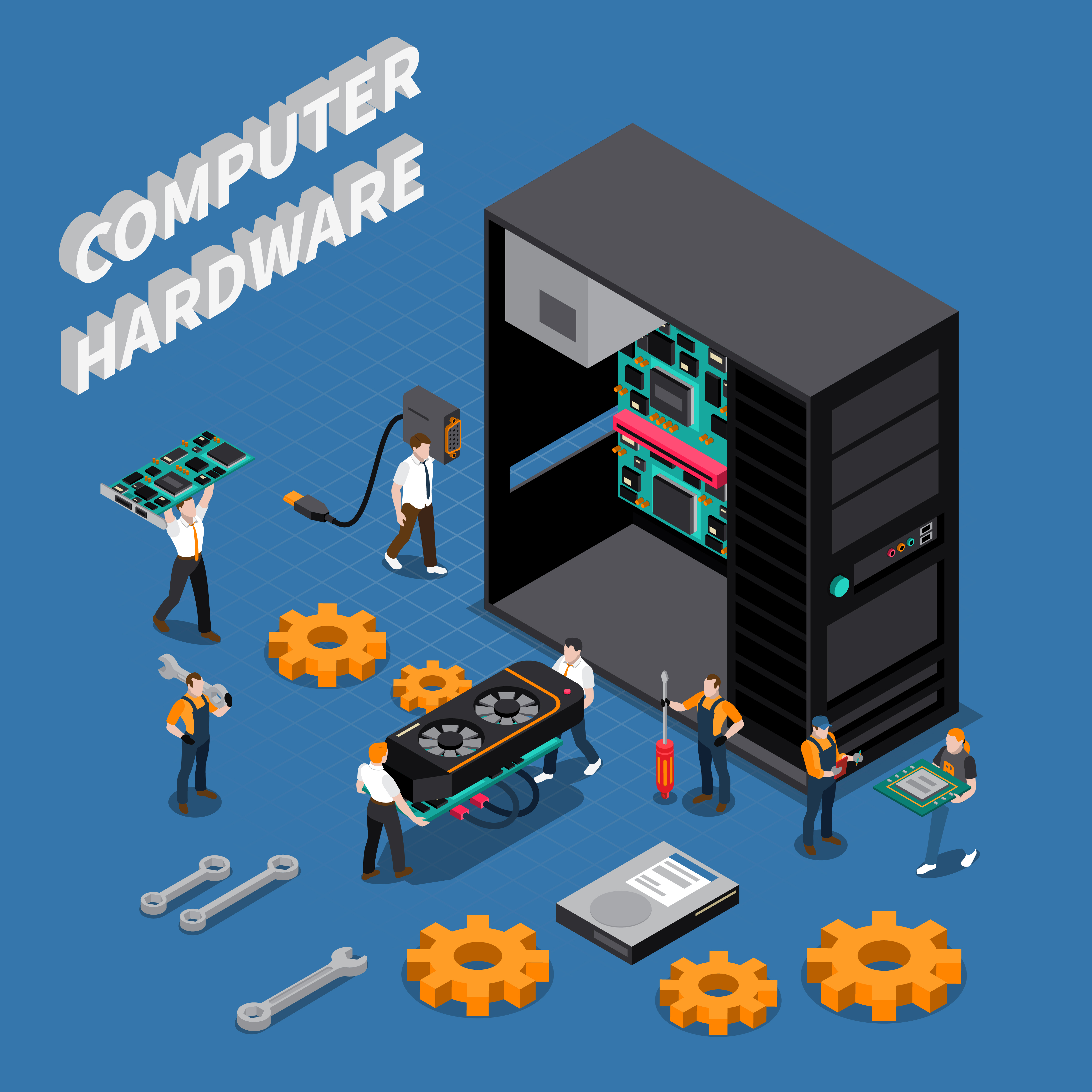
1# Diagnostics Phase

Hard drive, Memory and Component Testing (2-8 Hours)
Hard drive surface test for bad blocks and degrading health, performance issues, memory tests, and individual component testing to ensure all components are working properly and up to speed for maximum performance and reliability

Software Tests (1-2 Hours)
Scan for malware, viruses, spyware, vulnerabilities, firmware updates, windows updates, junk software, start-up processes, file system inspection, and browser testing to ensure all aspects of software are healthy and clean

Stress Testing (1+ Hours)
CPU, Memory, Hard Drive, and Graphic card load testing for stability and cooling performance to find bad fans, degraded thermal compound, instabilities, and performance issues

Physical cleaning and Inspection (15+ Min)
Blow out dust on all cooling fans, clean the LCD and chassis, and clean the keyboard. Detailed inspection of chassis, hinges, ports, power jack, and wiring when applicable
2# Authorization Phase

Education of the original problem (5-15 Min)
Go over the information from the diagnostic tests and what issues were found and how the repair process will resolve all the known issues addressing any other concerns the technician discovered or that you may have

Security and Backup recommendations (1 Min)
Go over best practices for security and backup with the customer so that everyone can make an informed decision on the best ways to stay secure and have their important information secured and backed up from data loss and catastrophes

Summarization of components age and software (1-3 Min)
Provide the customer with information on the age of their equipment, expected life cycles, and possible upgrade options to stretch out the lifespan and improve current performance and reliability

Upgrades and Replacements (1-3 Min)
Provide the customer with information on possible hardware or software upgrades for best performance, ease of use, and reliability as well as provide options for replacing aging or failing equipment with new options for the best long-term investment of your equipment
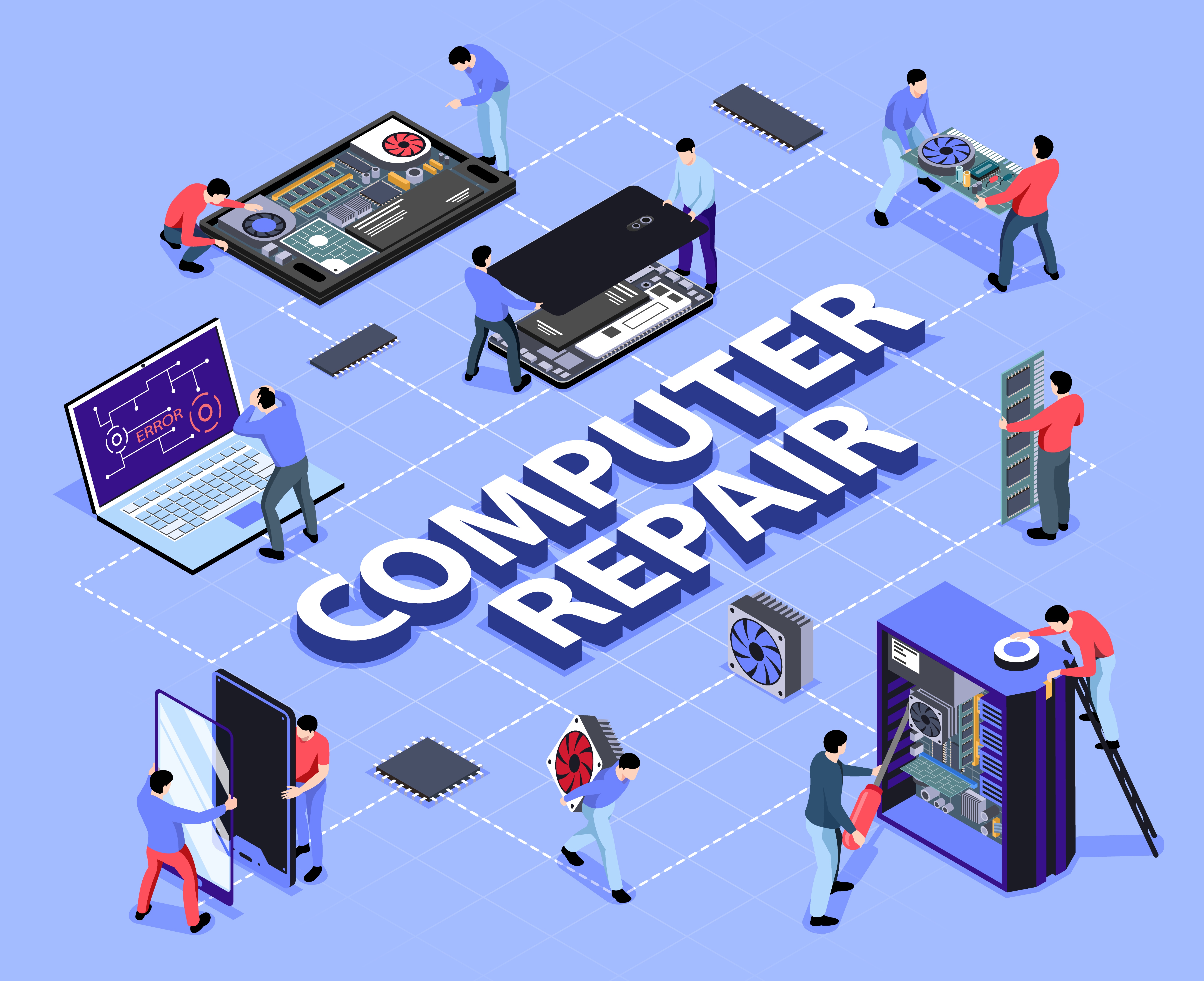
3# Repair phase

Start the repairs (2-48 Hours)
Once approved, Repairs begin with addressing the most critical issues first to rule out other possibly unknown issues that can arise during the repair process
Update windows, apps, drivers and firmware (1-2 Hours)
Update all drivers, firmware, software, and install all operating system updates for maximum security, reliability, and performance. Preventing future issues and damage from vulnerabilities and hardware issues that are patched by the original manufacturers and operating system supplier
Optimizations (1 Hour)
Remove junk software and bloatware. Optimizations of computer startup by reducing unwanted software from loading with the operating system. Removal of temp data from previous updates and installs to free up space for future use and streamline common processes

Summarization with the customer (5-20 Min)
Reboot I.T. goes over all the results of the repairs as well as education on how to best avoid the same issues as well as a side by side walk thorough of the changes made in the operating system and best tips and tricks for a better user experience